

How to connect WordPush to ChatGPT and Claude
 By Ryan Melling, founder of WordPush
· · 4 min read
Connect WordPush to ChatGPT, Claude or another MCP client and draft, schedule and publish LinkedIn posts from your AI assistant. Step-by-step setup.
WordPush can connect to AI assistants like ChatGPT and Claude through MCP (the Model Context Protocol). Once connected, you can stay in your assistant and ask it to pull your brand context, draft a post in your voice, generate a carousel or image, and schedule or publish it, all in your WordPush account.
There is no WordPush listing in the ChatGPT or Claude app directories yet, so for now you add it as a custom connector by hand. It takes a couple of minutes. Here is how.
Before you start
- You need a WordPush account. AI assistant access is included in the plan, like everything else.
- You need an AI assistant that supports custom MCP connectors: Claude supports them directly, and ChatGPT exposes them through developer mode while the feature is in early access.
- Have your WordPush login handy. You authorise the connection with the same secure sign-in you already use.
Your WordPush MCP connector address is:
https://app.wordpush.co.uk/mcp/wordpushA couple of the screenshots below were captured in our test environment, so the address shown in them differs. Always use the address above.
Connect WordPush to Claude
Claude supports custom connectors directly.
- In Claude, open Customize → Connectors. (On Team and Enterprise plans an Owner adds it once under Organization settings → Connectors, and everyone else clicks Connect.)
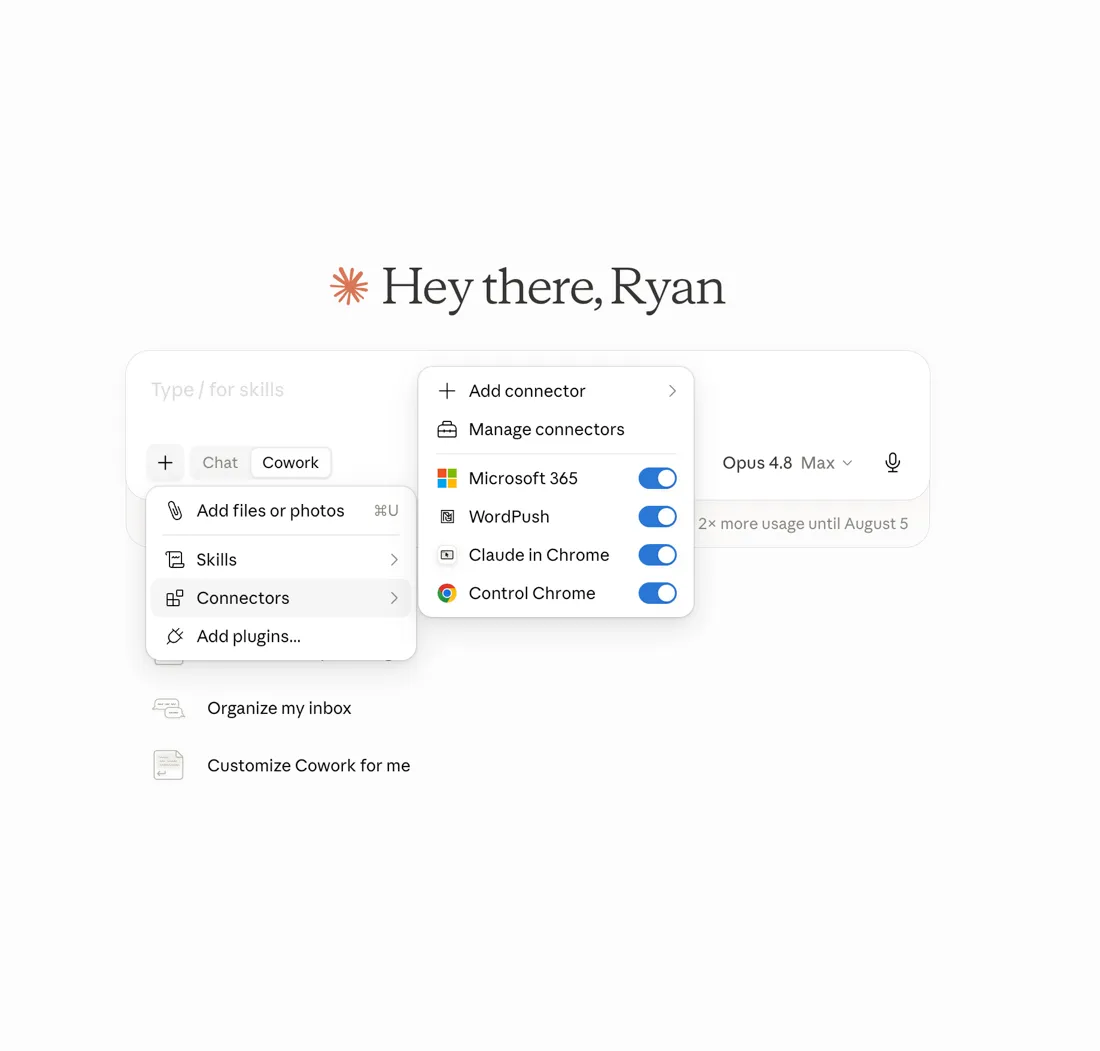
- Choose Add custom connector, paste the WordPush URL, and confirm:
https://app.wordpush.co.uk/mcp/wordpush - Click Connect, then approve the secure sign-in when WordPush asks. This issues an access token scoped to your account.
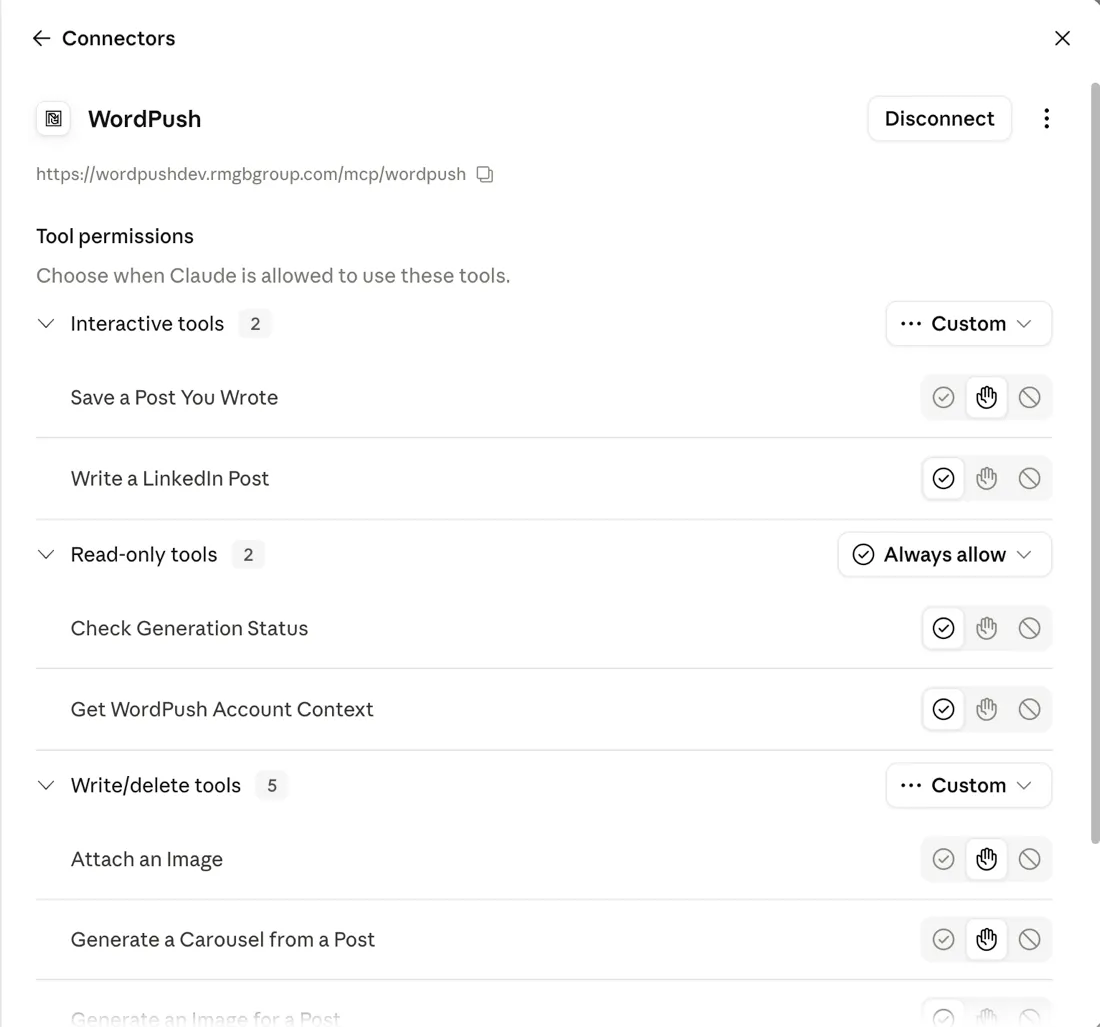
- You are connected. You can fine-tune what Claude is allowed to do per tool: leave the read-only tools on always allow, and set the ones that write or publish to ask first.
- Start a new chat and ask Claude to use WordPush, for example: “Ask WordPush what my brand is, then draft a post about this week’s industry news.”
Connect WordPush to ChatGPT
Custom MCP connectors in ChatGPT are still early access, so you turn them on through developer mode first.
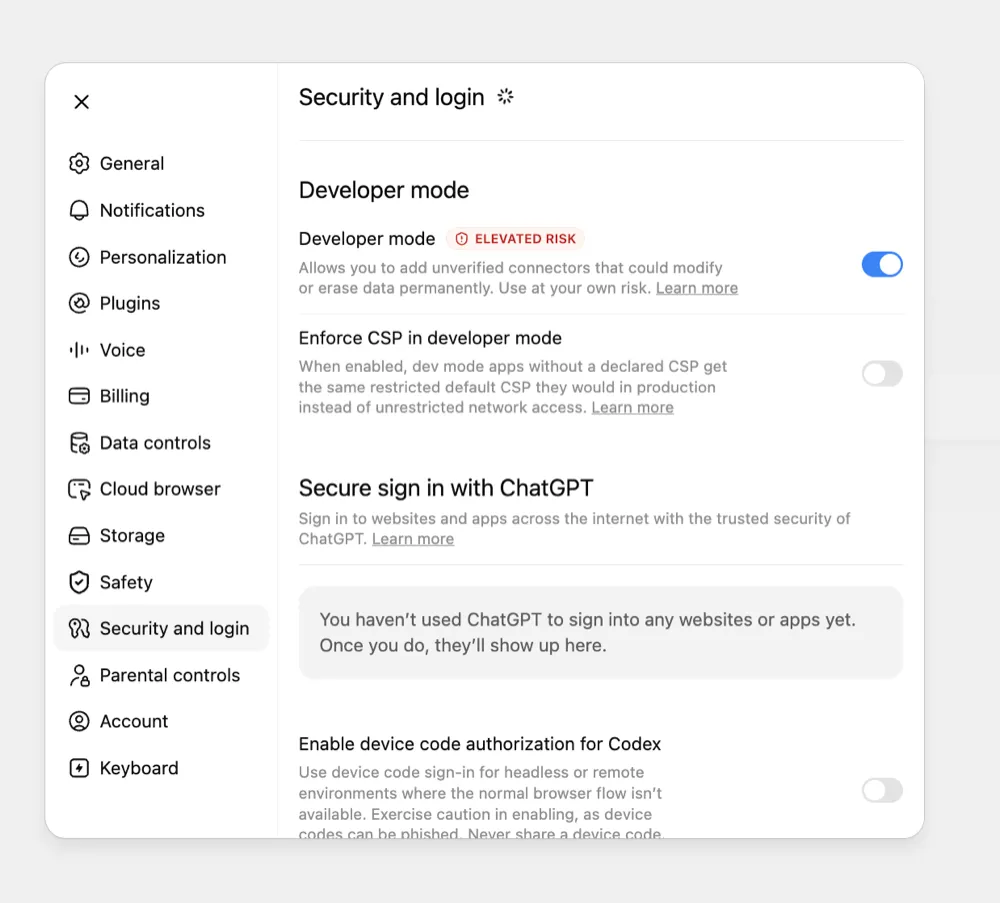
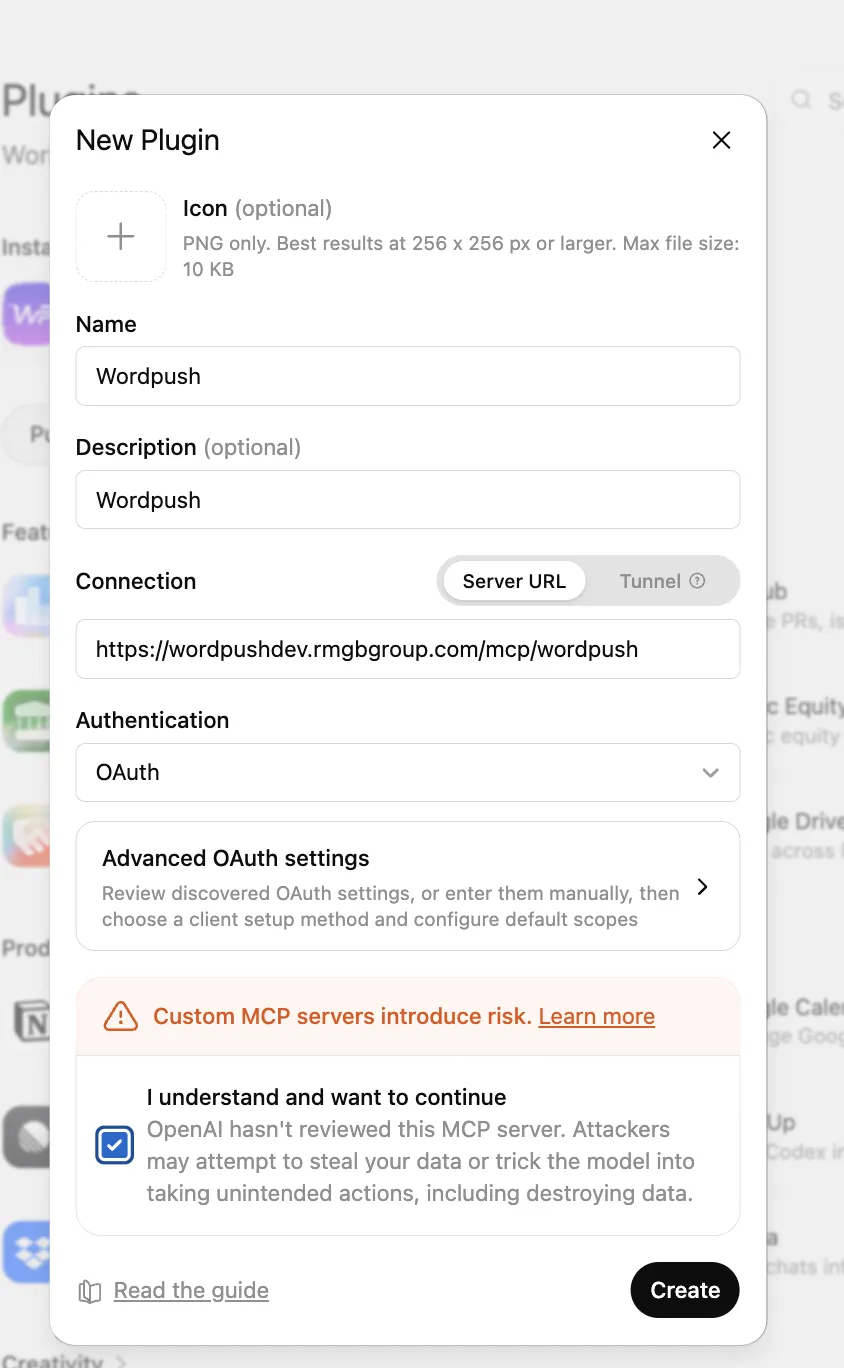
- Open Settings → Apps & Connectors and switch on Developer mode. ChatGPT marks this as elevated risk because it lets you add connectors it has not reviewed. That is expected for a connector you are adding by hand.
- Still in Apps & Connectors, choose Create.
- Fill it in:
- Name: WordPush
- Description: anything — it is a label for you
- Server URL:
https://app.wordpush.co.uk/mcp/wordpush(the full path, not just the domain — this is the most common mistake) - Authentication: OAuth
- Confirm the warning, then create it.
- Approve the secure sign-in when prompted. This issues an access token scoped to your account.
- In a chat, ask ChatGPT to use WordPush, for example: “Use WordPush to draft and schedule a carousel about hiring trends for Tuesday morning.”
Custom connectors need a paid plan — Plus, Pro, Business, Enterprise or Edu. They are not available on the free tier. On Business and Enterprise an administrator may have to permit developer mode first, which is the usual reason the switch is missing entirely.
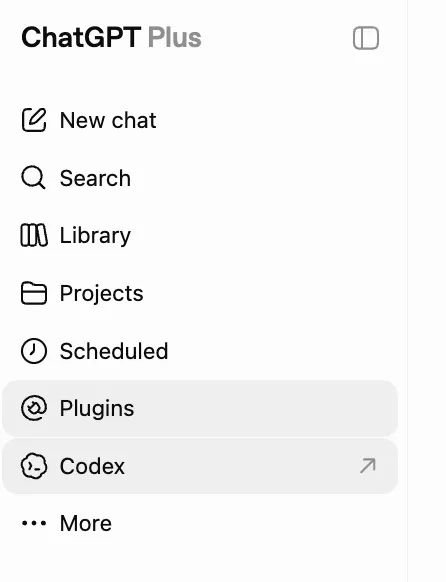
Note on the screenshots below. OpenAI has moved these screens since we captured them — connectors used to live under “Security and login” and were called Plugins. The shape of the task is unchanged, but for steps we keep current, see the ChatGPT setup page.
What you can ask it to do
Once connected, your assistant can:
- Pull your context so posts match your brand, audience and remaining credits.
- Write a post in your trained voice, in any of your angles, or save a post you have already written.
- Generate a carousel or an image from a post (these use AI credits from your plan) and check on generation status.
- Schedule or publish to your LinkedIn profile or company page through the official LinkedIn API.
The assistant only ever sees the specific tool results WordPush returns, such as the draft and its status. It does not get your wider WordPush data.
Staying in control
You are always in charge. Every tool has its own permission, so you can let the read-only ones run freely and have the assistant ask before it writes, schedules or publishes anything. Nothing publishes without you, and generation spends credits exactly as it would inside WordPush. To disconnect, revoke the connection from your connector settings, or in WordPush under Settings → AI assistants, at any time.
For the full detail on what is shared, see our Privacy Policy.
Per-client setup pages
This guide covers the two most common assistants. We keep a maintained setup page for each client, with the menu names checked against the maker’s own documentation and dated on the page:
- Claude — every plan, including Free
- ChatGPT — paid plans, developer mode required
- Claude Code — one command in the terminal
- Cursor — one entry in
mcp.json
And if you want the background rather than the steps: what is MCP, is it safe to connect LinkedIn to an AI assistant, and the full tool reference.