
How to connect WordPush to ChatGPT and Claude
10 July 2026 · by Ryan Melling
WordPush Pro can connect to AI assistants like ChatGPT and Claude through MCP (the Model Context Protocol). Once connected, you can stay in your assistant and ask it to pull your brand context, draft a post in your voice, generate a carousel or image, and schedule or publish it, all in your WordPush account.
There is no WordPush listing in the ChatGPT or Claude app directories yet, so for now you add it as a custom connector by hand. It takes a couple of minutes. Here is how.
Before you start
- You need a WordPush Pro plan. AI assistant access is not on Personal.
- You need an AI assistant that supports custom MCP connectors: Claude supports them directly, and ChatGPT exposes them through developer mode while the feature is in early access.
- Have your WordPush login handy. You authorise the connection with the same secure sign-in you already use.
Your WordPush MCP connector address is:
https://wordpushdev.rmgbgroup.com/mcp/wordpushConnect WordPush to Claude
Claude supports custom connectors directly.
- In Claude, open the + menu next to the message box and choose Connectors (or go to Settings → Connectors).
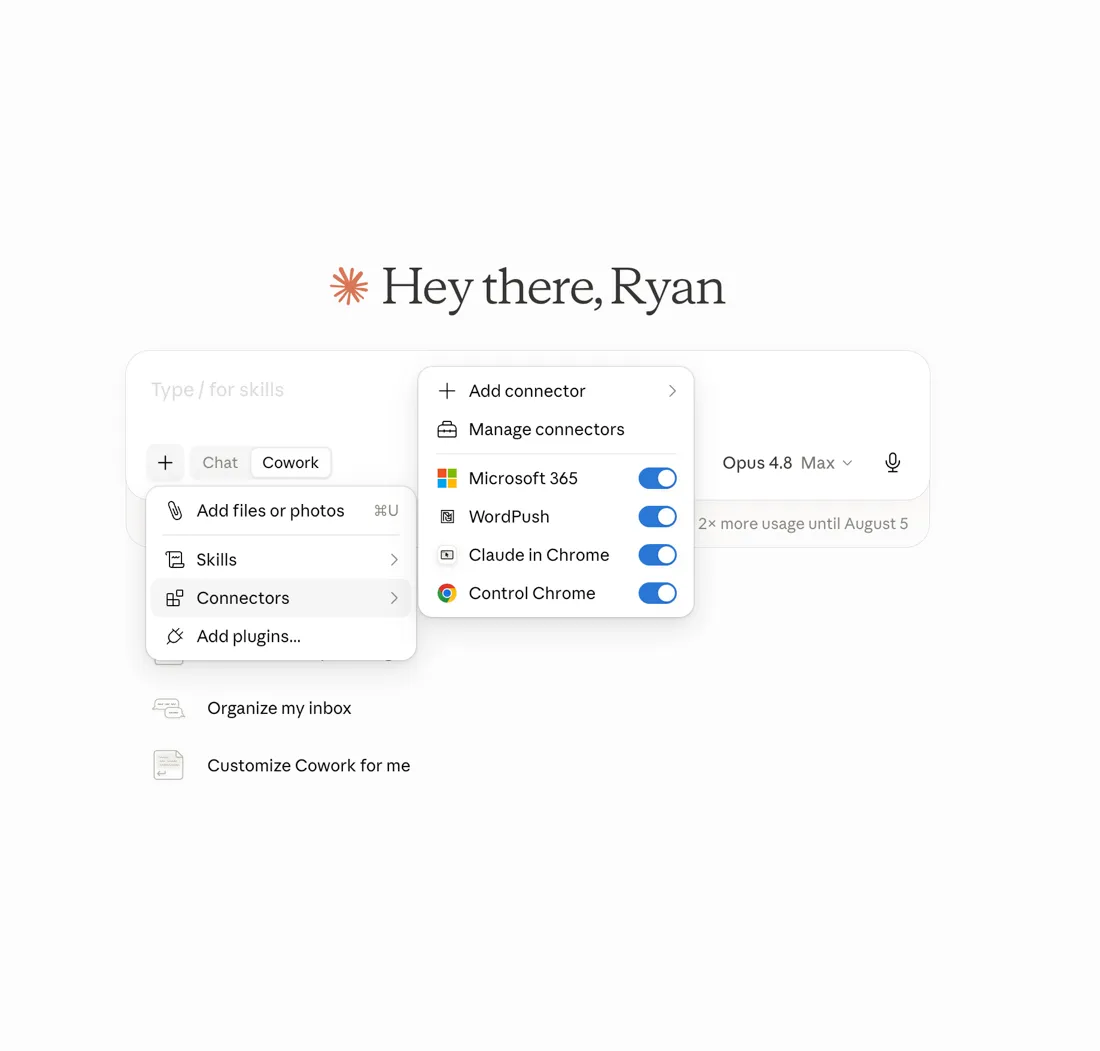
- Choose Add custom connector, paste the WordPush URL, and confirm:
https://wordpushdev.rmgbgroup.com/mcp/wordpush - Click Connect, then approve the secure sign-in when WordPush asks. This issues an access token scoped to your account.
- You are connected. You can fine-tune what Claude is allowed to do per tool: leave the read-only tools on always allow, and set the ones that write or publish to ask first.
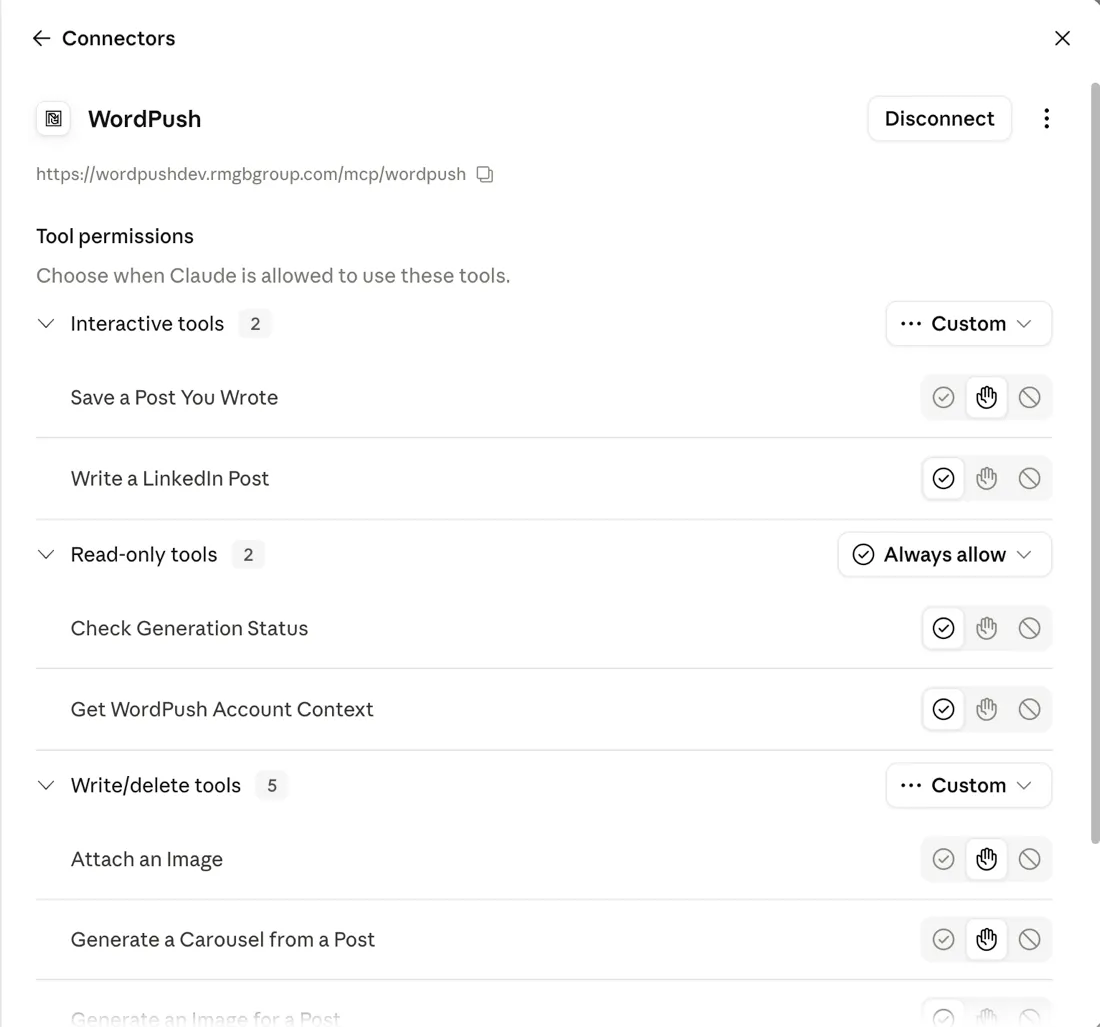
- Start a new chat and ask Claude to use WordPush, for example: “Ask WordPush what my brand is, then draft a post about this week’s industry news.”
Connect WordPush to ChatGPT
Custom MCP connectors in ChatGPT are still early access, so you turn them on through developer mode first.
- In ChatGPT, open Settings → Connectors and enable Developer mode. This is what exposes custom MCP connectors while the feature is in early access.
- Choose Add connector and paste the WordPush URL:
https://wordpushdev.rmgbgroup.com/mcp/wordpush - Authorise the connection with the secure sign-in when prompted.
- In a chat, ask ChatGPT to use WordPush, for example: “Use WordPush to draft and schedule a carousel about hiring trends for Tuesday morning.”
If you cannot find developer mode, your ChatGPT tier may not have custom connector access yet. Claude’s connector support above is available now.
What you can ask it to do
Once connected, your assistant can:
- Pull your context so posts match your brand, audience and remaining credits.
- Write a post in your trained voice, in any of your angles, or save a post you have already written.
- Generate a carousel or an image from a post (these use AI credits from your plan) and check on generation status.
- Schedule or publish to your LinkedIn profile or company page through the official LinkedIn API.
The assistant only ever sees the specific tool results WordPush returns, such as the draft and its status. It does not get your wider WordPush data.
Staying in control
You are always in charge. Every tool has its own permission, so you can let the read-only ones run freely and have the assistant ask before it writes, schedules or publishes anything. Nothing publishes without you, and generation spends credits exactly as it would inside WordPush. To disconnect, revoke the connection from your connector settings, or in WordPush under Settings → AI assistants, at any time.
For the full detail on what is shared, see our Privacy Policy.
Frequently asked questions
-
Which plans include AI assistant (MCP) access?
AI assistant access is a Pro plan feature. On Pro you can connect WordPush to ChatGPT, Claude, or another MCP client and have it draft, generate, schedule, and publish posts in your account. -
Is there a WordPush app in the ChatGPT or Claude directory?
Not yet. We are going through the review process to be listed. For now you add WordPush as a custom connector by hand, which this guide walks through. In ChatGPT that currently means turning on developer mode, as custom connectors are still early access. Nothing changes about how it works once we are listed; the directory just makes the first connection a click instead of a paste. -
Can the assistant post to LinkedIn without me?
No. You stay in control. The assistant only does what you ask it to in that conversation, you can set what each tool is allowed to do, and you can revoke the connection at any time in Settings.